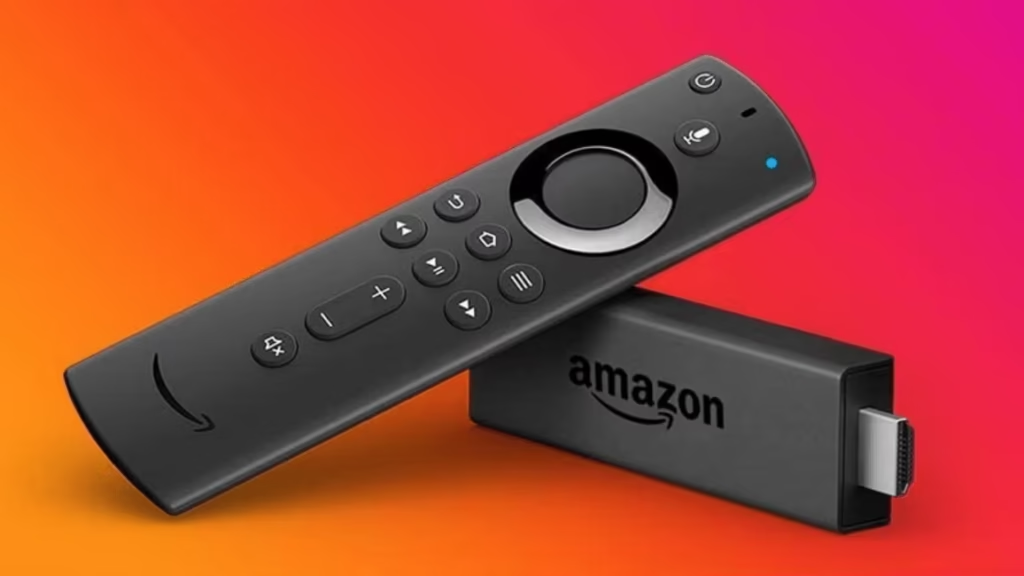
Most people who switch to IPTV already own a Firestick. It’s sitting in the back of the TV, half-forgotten, originally bought for Netflix or Prime Video — and it turns out it’s one of the best devices you can possibly use for IPTV. Compact, affordable, powerful enough for 4K streaming, and compatible with every major IPTV app on the market.
The only thing standing between you and 30,000+ live channels is a five-minute setup process. This guide walks you through it completely — from enabling the right settings on your Firestick to entering your credentials and watching your first channel. No technical knowledge required.
What You Need Before Installing IPTV on Firestick
Before touching any settings, make sure you have these three things ready :
1. A Firestick or Fire TV device Any generation works — the original Firestick, Firestick 4K, Firestick 4K Max, Fire TV Cube, or Fire TV Stick Lite. The newer models handle 4K streams more comfortably, but every version of the device runs IPTV apps without issue.
2. An active IPTV subscription You’ll need your login credentials — specifically a server URL, a username, and a password. These arrive by email within 5 to 30 minutes of subscribing. If you haven’t subscribed yet, British IPTV’s free 24-hour trial gives you full access to test everything before spending a penny. No credit card needed.
3. A stable internet connection For HD streaming, 10 Mbps is the bare minimum. For 4K, aim for at least 25 Mbps. If your Firestick is on Wi-Fi, keep it reasonably close to your router — or use a Wi-Fi extender if signal strength is an issue.
Once you have all three, you’re ready to go.
Step 1 : Enable Apps From Unknown Sources on Your Firestick
By default, Amazon only allows apps downloaded from its own store. Since IPTV apps like IPTV Smarters Pro and TiviMate aren’t always listed there, you need to unlock this setting first. It takes thirty seconds.
- From the Firestick home screen, go to Settings
- Select My Fire TV
- Tap Developer Options
- Turn on Apps from Unknown Sources
- Confirm when prompted
That’s it. Your Firestick will now accept apps installed from outside the Amazon Appstore. This setting is completely safe to enable and doesn’t affect anything else on your device.
Step 2 : Install the Downloader App
The Downloader app is your gateway to installing any IPTV app on Firestick. It’s a small, free utility available directly from the Amazon Appstore.
- Press the Search icon on your Firestick home screen
- Type Downloader
- Select the orange Downloader app (published by AFTVnews)
- Press Download and wait for it to install
- Open Downloader and allow storage permissions when asked
You only need to do this once. After that, Downloader stays on your device and you can use it to install any app at any time.
Step 3 : Install Your IPTV App
You have two main choices here, and both work excellently with British IPTV. The right one depends on how you plan to use your setup.
Option A — IPTV Smarters Pro (Free, Recommended for Beginners)
IPTV Smarters Pro is available directly on the Amazon Appstore, which makes installation even simpler.
- Go to the Search icon on your Firestick home screen
- Type IPTV Smarters Pro
- Select the app and press Download
- Wait for installation to complete — usually under a minute
- Open the app and proceed to Step 4
Option B — TiviMate (Best Experience on Firestick, Premium Features)
TiviMate isn’t always available on the Amazon Appstore depending on your region, so Downloader is the reliable method.
- Open the Downloader app you installed in Step 2
- In the URL bar, type :
https://tivimate.com/install - The APK file will download automatically
- Press Install when prompted
- Once installed, open TiviMate
TiviMate’s free version works, but TiviMate Premium (around £4–5 per year) unlocks multiple playlists, catch-up TV, and recording. If you’re using IPTV as your main TV service, it’s worth every penny.
Not sure which to choose? Read our full IPTV Smarters Pro vs TiviMate comparison for a detailed breakdown of both apps.
IPTV on Firestick : How to Enter Your Credentials
This is where your subscription credentials come in — the server URL, username, and password from your welcome email. The process is nearly identical on both apps.
On IPTV Smarters Pro :
- Open the app and tap Add New User
- Select Login with Xtream Codes API (not M3U URL — Xtream Codes is more stable)
- Fill in the following fields :
- Any Name : whatever you want to call this profile
- Username : from your welcome email
- Password : from your welcome email
- URL : the server URL from your welcome email
- Tap Add User
- Your channel list will load within 20–30 seconds
On TiviMate :
- Open TiviMate and tap Add Playlist
- Select Xtream Codes login
- Enter your server URL, username, and password
- Tap Next and wait for the playlist to load
- Select which channel groups you want to include and tap Finish
Both apps will automatically pull in your full channel list, EPG guide, and VOD library. Everything is sorted into categories — Live TV, Movies, Series, Sports — so you don’t have to organise anything manually.
How to Navigate Your Channels on Firestick
Once your credentials are entered and your channel list has loaded, here’s what to expect.
On IPTV Smarters Pro, you’ll see a home screen with category tabs across the top — Live TV, Movies, Series, Catch-Up. Use your Firestick remote to navigate between them. Tap any channel to start watching. Long-press to access stream options or add the channel to your favourites.
On TiviMate, the main screen shows your channel list on the left and the live programme guide on the right. Press OK on your remote to open the full EPG. Press Back to return to your channel list. The navigation is noticeably smoother here — TiviMate was built specifically for remote-controlled TV interfaces.
To create a list of your most-watched channels on either app, look for the Favourites option when you long-press any channel. This saves you scrolling through thousands of channels every time.
Best Settings to Optimise IPTV on Firestick
A few quick adjustments will meaningfully improve your streaming experience :
Set your stream format to Xtream Codes, not M3U Xtream Codes API connections are faster to load and more stable during peak viewing hours. If you set up with M3U by accident, go back into your playlist settings and switch.
Enable hardware decoding In IPTV Smarters Pro, go to Settings → Player → enable Hardware Decoding. This reduces buffering on 4K and HD streams by offloading processing to the Firestick’s GPU rather than the CPU.
In TiviMate, go to Settings → Player → select ExoPlayer with hardware acceleration enabled.
Clear the Firestick cache regularly Over time, cached data slows down every app on your Firestick. Go to Settings → Applications → Manage Installed Applications → select your IPTV app → Clear Cache. Doing this once a month keeps things running smoothly.
Use a wired connection if possible A standard Ethernet adapter for Firestick costs around £10 and completely eliminates Wi-Fi dropouts during live sport. If you’re watching Premier League, Champions League, or PPV events, it’s a worthwhile investment.
Common Issues With IPTV on Firestick (And How to Fix Them)
Buffering on HD or 4K streams First, run a speed test on your Firestick using the Downloader app to visit fast.com. If your speed is fine, the issue is usually the stream quality selected. Try switching from 4K to FHD in your player settings — the visual difference is minimal on most TVs, but the stability improvement is significant.
App crashes or freezes This almost always comes down to memory. The older Firestick models have limited RAM. Close background apps, clear your cache, and if it persists, do a soft reboot by holding the Select and Play buttons simultaneously for five seconds.
Channels not loading or showing as unavailable Log out of your IPTV app completely and log back in. This forces the app to re-pull your playlist from the server with fresh data. If specific channels remain unavailable, contact your provider — it may be a server-side issue.
EPG not showing programme information Go into your playlist settings and force a manual EPG refresh. If that doesn’t work, try toggling the EPG source between automatic and manual. On TiviMate, you can enter a custom XMLTV EPG URL if your provider supplies one.
App won’t install via Downloader Double-check that Apps from Unknown Sources is enabled in Developer Options (Step 1 above). If it is and the install still fails, the APK URL may have changed — check the app’s official website for the current download link.
Is IPTV Legal on Firestick in the UK?
This is a question worth addressing directly. The Firestick itself is a completely legal device. Downloading and using IPTV apps is also legal. What matters is the source of the content being streamed.
A legitimate, paid IPTV subscription from a licensed provider operates within the law. Using unlicensed streams of copyrighted content — free IPTV sources, “fully loaded” boxes, or streams from providers with no rights agreements — is where legal issues can arise.
If you’re using a paid subscription from a reputable UK provider, you’re on the right side of the line. When in doubt, the safest approach is always to use a paid service from a provider that’s transparent about what it offers.
Conclusion
Setting up IPTV on Firestick is genuinely one of the quickest tech setups you’ll do. Enable unknown sources, install your app of choice, enter your credentials, and you’re watching. The whole process takes less time than it takes to read this article.
The Firestick handles IPTV extremely well — particularly the 4K Max model, which streams Ultra HD content without breaking a sweat. Pair it with a quality subscription and either IPTV Smarters Pro or TiviMate, and you have a TV setup that beats most cable packages at a fraction of the cost.
If you haven’t tried IPTV yet, there’s genuinely no easier way to start than with a free trial on a device you already own.